Does Jeep Have Apple CarPlay and How to Set It Up
Yes, many Jeep models from 2017 onward support Apple CarPlay. You’ll need a compatible Uconnect system, preferably Uconnect 4 with an 8.4-inch screen or newer, and an iPhone running iOS 7.1 or higher.
You can connect via USB using a certified cable or wirelessly if your Jeep has Uconnect 5.
Once connected, you’ll control apps safely from your touchscreen or voice commands.
Keep going to discover how to set up and optimize your CarPlay experience.
Key Takeaways
- Most Jeep models from 2017 onward support Apple CarPlay via Uconnect 4 (8.4-inch) or later systems, with wireless available on Uconnect 5.
- To set up wired CarPlay, connect your iPhone with a certified USB cable to the Jeep’s USB port and follow on-screen Uconnect prompts.
- Wireless CarPlay setup requires enabling Bluetooth and Wi-Fi on your iPhone and pairing it with the Jeep’s Uconnect 5 system.
- Ensure your iPhone runs iOS 7.1 or higher and grant necessary permissions during setup for seamless Apple CarPlay operation.
- Apple CarPlay allows hands-free calling, messaging, navigation, and media streaming through Uconnect’s touchscreen or voice commands for safe driving.
Which Jeep Models Support Apple CarPlay
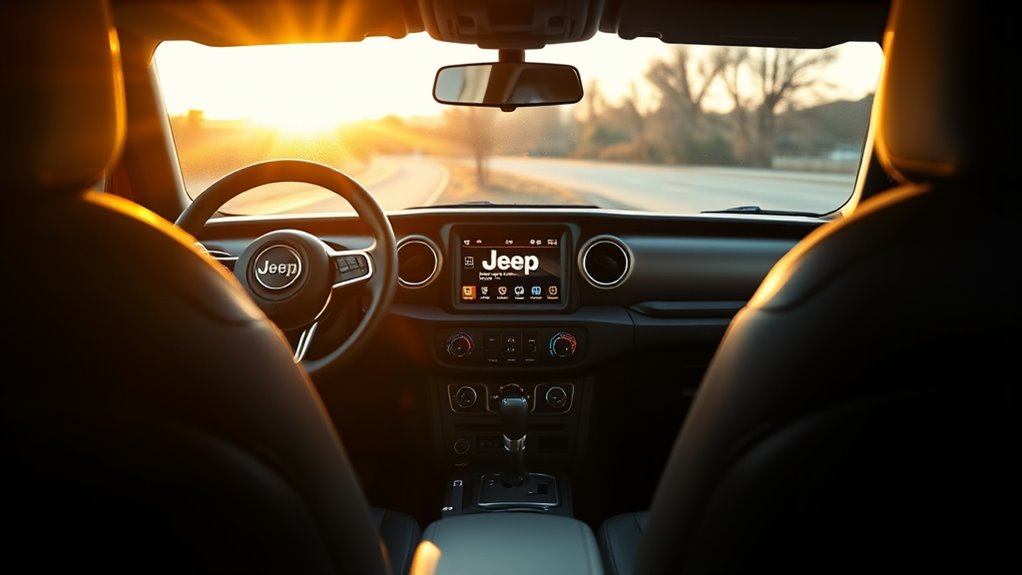
While not every Jeep model supports Apple CarPlay, most vehicles from 2017 onward do, provided they have the right Uconnect system version. If your Jeep features the Uconnect 4 system with the 8.4-inch display introduced in 2017 or later, you can easily set up Apple CarPlay.
Some newer models with the Uconnect 5 system even support Wireless Connectivity, letting you connect your iPhone without plugging in. To use Apple CarPlay or Android Auto, simply connect your phone, and the system will automatically detect and launch the compatible app, whether it’s Apple CarPlay or the Android Auto app.
This setup lets you access Android Auto or Apple CarPlay features without taking your hands off the wheel, using voice commands to make calls, navigate, or control music. If your Jeep has an older Uconnect system from 2016 or earlier, it likely won’t support Apple CarPlay, so you might need to install the Android Auto or Apple CarPlay system upgrade to enjoy these features.
What You’ll Need to Get Apple CarPlay Working in Your Jeep
To get Apple CarPlay working in your Jeep, you’ll need a compatible Uconnect system from 2017 or later that’s designed to facilitate it. Your iPhone must run iOS 7.1 or higher, and having the latest Apple Maps installed helps guarantee smooth navigation.
Unlike Android Auto, which is available for Android devices, Apple CarPlay works exclusively with iPhones, so make sure you’re using an Apple device. You’ll also need a certified USB cable to connect your iPhone to the Jeep’s USB port, typically located in the center console or near the infotainment system.
If your Jeep has Uconnect 5, you can enjoy wireless Apple CarPlay after the initial setup, which involves Bluetooth and Wi-Fi pairing. Before you start, check that your system supports Apple CarPlay and be ready to follow on-screen prompts to enable it and grant the necessary permissions.
This setup ensures you can seamlessly integrate your iPhone with your Jeep’s infotainment system.
Connecting Apple CarPlay via USB in Jeep
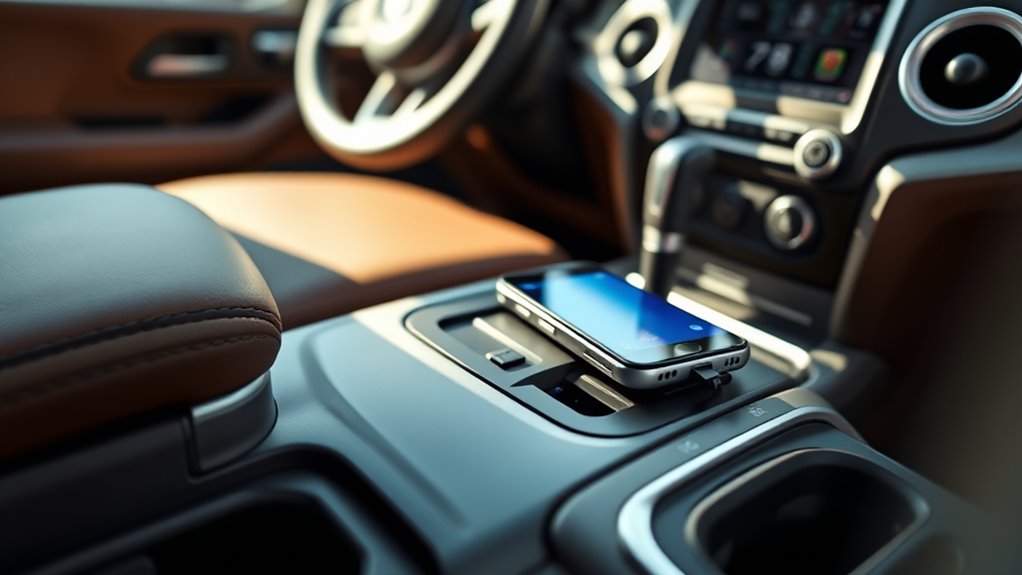
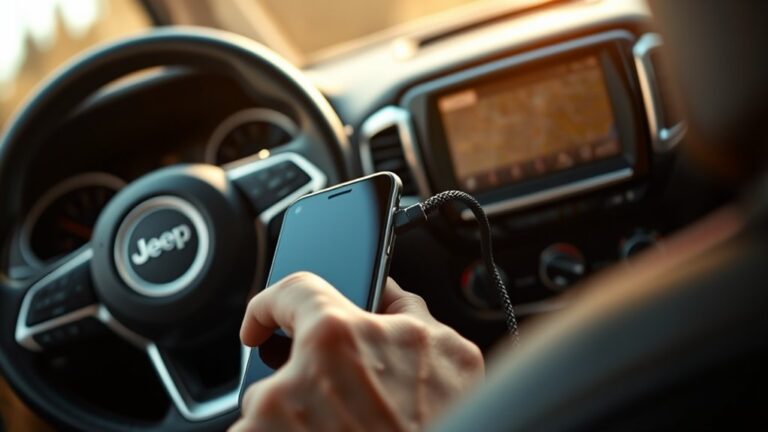
To connect Apple CarPlay in your Jeep, start by plugging your iPhone into the USB port with a certified cable. Then, just follow the on-screen prompts on the Uconnect system to enable CarPlay. You’ll also need to grant the necessary permissions on your phone. Once everything is set up, CarPlay will show up automatically on your Jeep’s display. It’s pretty straightforward and makes using your phone while driving much easier!
USB Connection Steps
If your Jeep has a Uconnect system from 2017 or newer, you can easily connect your iPhone via USB to use Apple CarPlay. First, grab a certified Lightning charging cable and plug it into your iPhone.
Then, connect the other end to the Jeep’s dedicated USB port, usually found near the center console. Once connected, your Uconnect display will prompt you to enable Apple CarPlay. Follow the on-screen instructions to proceed.
After setup, Apple CarPlay icons will appear on the touchscreen, letting you access compatible apps seamlessly. Using charging cables guarantees a stable connection and keeps your phone powered during use.
This wired connection is straightforward and reliable, making it the preferred method to enjoy Apple CarPlay in your Jeep.
Enabling CarPlay Permissions
Once you connect your iPhone to your Jeep’s USB port with a certified Lightning cable, the Uconnect system will prompt you to enable Apple CarPlay permissions. This Permission Activation is essential for your iPhone to communicate with the vehicle’s infotainment system.
Simply follow the on-screen prompts on the Uconnect display to grant the necessary permissions. Make sure your iPhone runs iOS 7.1 or later and has the latest Apple Maps app installed for full functionality.
Once permission is granted, the Apple CarPlay icon will appear on the Uconnect screen, confirming a successful connection. This straightforward Permission Activation process guarantees you can safely and easily access CarPlay features while driving your Jeep via USB.
Using Wireless Apple Carplay With Uconnect 5
Although wireless Apple CarPlay is available only on Jeep models with Uconnect 5, it offers a seamless, cable-free way to connect your iPhone. This wireless convenience means no more fumbling with cables. Just pair your phone via Bluetooth, then connect through Wi-Fi, and you’re set.
Make sure your iPhone runs iOS 7.1 or later, with both Bluetooth and Wi-Fi enabled. Follow the on-screen prompts to grant permissions and complete setup swiftly.
Here’s a quick guide to get you started:
| Step | Action | Tip |
|---|---|---|
| 1 | Enable Bluetooth & Wi-Fi | Check iPhone settings |
| 2 | Pair iPhone via Bluetooth | Use Uconnect screen prompts |
| 3 | Connect through Wi-Fi | Wait for confirmation |
| 4 | Allow permissions | Follow Uconnect prompts |
| 5 | Enjoy wireless CarPlay | No USB cable needed |
With this setup, you enjoy full Apple CarPlay functionality without cords cluttering your ride.
Using Apple CarPlay on Your Jeep’s Uconnect Screen
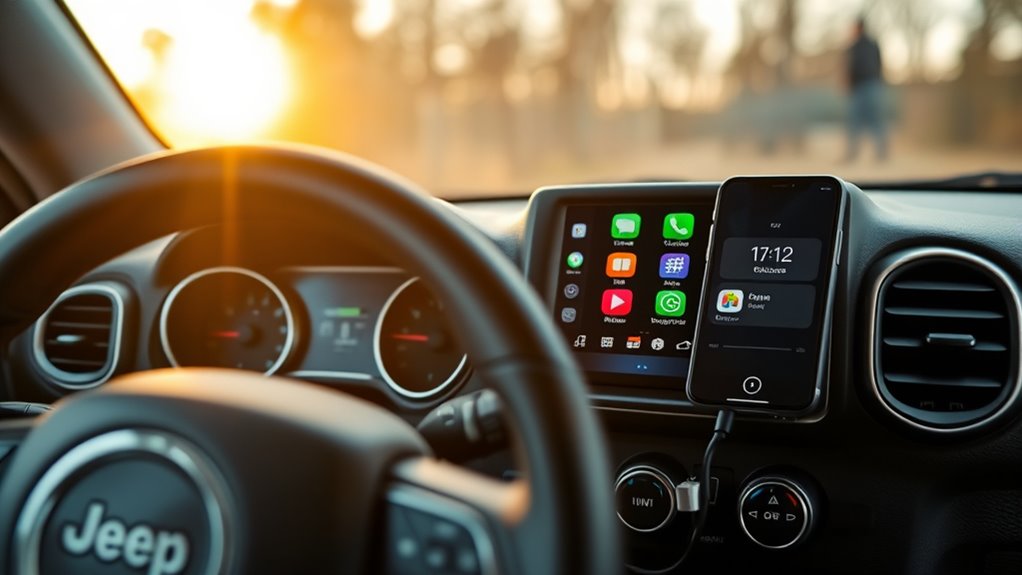
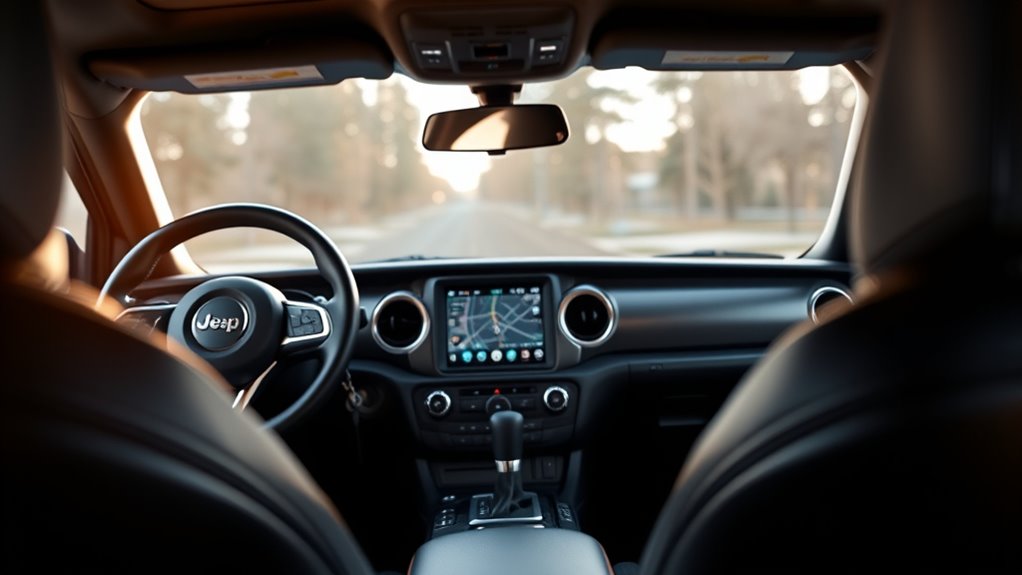
When you want to use Apple CarPlay on your Jeep’s Uconnect screen, start by connecting your iPhone to the vehicle’s USB port with a certified cable. Make sure your Jeep’s Uconnect system supports Apple CarPlay, usually available in models from 2017 onward. Once connected, follow the on-screen prompts to enable CarPlay and grant necessary permissions on your iPhone.
To use Apple CarPlay on your Jeep, connect your iPhone with a certified cable and follow the on-screen prompts.
Here’s how to get started:
- Connect your iPhone with a certified USB cable to the USB port in your Jeep.
- Watch for the Apple CarPlay icon to appear on the Uconnect screen and tap it.
- Grant any permissions on your iPhone to allow CarPlay access.
Using Apple CarPlay through this wired setup also helps prevent unnecessary battery drain by maintaining a steady charge. This supports your phone’s battery maintenance while you drive. That way, you stay connected without worrying about your iPhone’s battery running low during your trips.
How Siri Voice Commands Work With Apple Carplay
After setting up Apple CarPlay on your Jeep’s Uconnect screen, you can take advantage of Siri voice commands to control many functions hands-free. To activate Siri, just press and hold the voice control button on your steering wheel or say “Hey Siri” if you’ve enabled wireless CarPlay.
With voice commands, you can ask Siri to navigate to your destination, send text messages, make calls, play your favorite music, or control other compatible apps—all without touching your phone or the screen. Siri understands natural language, so you can speak as you normally would, keeping your focus on the road.
To use Siri with Apple CarPlay, your iPhone needs iOS 7.1 or later, and your Jeep should have a supported Uconnect system, ideally Uconnect 5 for wireless features. Using Siri voice commands enhances driving safety by letting you operate essential functions hands-free, reducing distractions and helping you stay connected effortlessly while on the go.
Which Apps Work With Apple Carplay on Uconnect
You can use a range of Apple CarPlay apps on your Jeep’s Uconnect system, like Apple Maps, Apple Music, and Messages. If your vehicle is equipped with Uconnect 5, you’ll enjoy full app functionality along with wireless connectivity, making it super easy to stay connected without any cables.
On top of that, popular third-party apps such as Spotify, Audible, and Waze work smoothly too. This means you can customize your driving experience exactly how you like it, whether that’s streaming your favorite tunes or navigating with ease.
Compatible Apple CarPlay Apps
Since Apple CarPlay only allows apps approved by Apple, you’ll find a curated selection of compatible apps on Uconnect that enhance safety and convenience while driving. These apps focus on navigation, communication, and entertainment without distracting you.
Here are three key categories you can utilize:
- Music Streaming: Enjoy Apple Music, Spotify, or Pandora for seamless audio playback while keeping your eyes on the road.
- Navigation: Use Apple Maps or third-party apps like Google Maps and Waze to get real-time directions and traffic updates.
- Messaging and Calls: Stay connected hands-free with Messages, WhatsApp, or Skype, all accessible via Siri voice commands.
This curated approach guarantees you only use apps designed for safe driving on your Jeep’s Uconnect system.
App Functionality on Uconnect
The selection of Apple CarPlay apps you can use on your Jeep’s Uconnect system is designed to keep your focus on driving while offering useful features. You’ll find core apps like Apple Maps, Apple Music, and Messages readily available on Uconnect 5 and some Uconnect 4 models that support CarPlay.
Third-party apps approved by Apple, such as Spotify and WhatsApp, also function smoothly through the system. However, app restrictions apply. You can only use apps that Apple has approved for CarPlay.
Any unsupported or incompatible apps won’t work on your Uconnect screen. You can control these apps either via the touchscreen or by using Siri voice commands, ensuring you stay connected safely without distractions.
Hands-Free Calling and Messaging With Apple Carplay
When driving, staying connected without distraction matters most, and Apple CarPlay’s hands-free calling and messaging lets you do just that. The interior design of Jeep’s Uconnect system integrates seamlessly with CarPlay, making it easy to stay in touch while keeping your focus on the road.
You don’t need extra setup. Just connect your iPhone via USB or wirelessly if supported.
Here’s how Apple CarPlay enhances your hands-free experience:
- Make and receive calls using steering wheel controls or the touchscreen, so your hands never leave the wheel.
- Use Siri voice commands to send and respond to messages, minimizing distractions.
- Access your iPhone’s contacts and recent calls instantly through the intuitive interface designed to complement Jeep’s interior design.
This setup guarantees safe communication, letting you stay connected without compromising your driving safety or the stylish, functional interior of your Jeep.
Streaming Music and Media With Apple Carplay
Beyond hands-free calling and messaging, Apple CarPlay lets you enjoy your favorite music and media effortlessly while on the road. With seamless media streaming, you can connect your iPhone to your Jeep’s Uconnect system either via USB or wirelessly if your model supports Uconnect 5.
Once connected, you control playback through the touchscreen or by using voice commands, keeping your focus on driving. Apple CarPlay supports high-quality audio streaming, delivering clear and immersive sound from popular apps like Apple Music, Spotify, and more.
The system only grants wireless media streaming on Jeep models equipped with Uconnect 5, but wired connections work across all compatible vehicles. With a wide selection of Apple-approved media apps accessible directly through CarPlay, you’ll have no trouble finding the perfect soundtrack for your journey.
This integration makes media streaming in your Jeep both convenient and enjoyable.
Troubleshooting Common Apple CarPlay Connection Issues
If you’re having trouble connecting Apple CarPlay to your Jeep, several common issues might be causing the problem. First, check that your iPhone runs iOS 7.1 or later and that your Jeep’s Uconnect system supports CarPlay. Next, confirm you’re using a certified USB cable and inspect the USB port for debris or damage.
Troubleshoot Apple CarPlay by ensuring iOS 7.1+, Uconnect compatibility, certified cables, and clean USB ports.
Also, verify CarPlay is enabled in Uconnect and grant all necessary permissions on your iPhone.
- For wireless CarPlay, verify your Jeep supports it and that both Bluetooth and Wi-Fi are enabled on your iPhone.
- Restart your iPhone and Jeep’s infotainment system to refresh the connection.
- Update your iPhone’s iOS and Uconnect firmware to fix any compatibility glitches.
Additionally, check your iPhone’s Battery Optimization settings, as aggressive power saving can interfere with CarPlay connectivity. Adjusting these settings can help maintain a stable connection during your drives.
Android Auto vs. Apple CarPlay in Jeep Vehicles
You’ll find that both Apple CarPlay and Android Auto offer seamless connectivity in Jeep vehicles equipped with Uconnect 5. However, the setup and compatibility can vary depending on your phone’s operating system and the version of the system you’re using.
Each platform comes with robust voice control features for navigation, messaging, and media. That said, the way you activate these voice controls is a bit different between the two.
Let’s dive into these differences and see how they can affect your in-car experience and overall ease of use.
Connectivity and Compatibility
Although Jeep has embraced both Apple CarPlay and Android Auto, your ability to use these features depends largely on your vehicle’s model year and Uconnect system version. Compatibility concerns often arise because not all Jeep models or Uconnect versions support both systems equally. Here’s what you need to know:
- Jeep vehicles from 2017 and newer typically support Apple CarPlay, but older models usually don’t.
- Uconnect 5 systems offer the best compatibility, including wireless Apple CarPlay, while some Uconnect 4 systems support wired connections after updates.
- To connect, you’ll usually need a certified USB cable unless your vehicle supports wireless CarPlay.
Understanding these points helps you avoid connectivity issues and guarantees you can enjoy seamless smartphone integration in your Jeep.
Voice Control Features
When you use voice control in your Jeep, both Apple CarPlay and Android Auto provide hands-free convenience through Siri and Google Assistant, respectively. You can activate voice commands via steering wheel controls or dedicated buttons on compatible devices, keeping your focus on the road.
Apple CarPlay uses Siri’s natural language understanding, letting you make calls, send messages, or get navigation directions with simple, conversational commands. Similarly, Android Auto relies on Google Assistant to handle media control, messaging, and route guidance efficiently.
Both systems enhance safety by minimizing distractions and letting you operate essential functions without taking your hands off the wheel. Whether you prefer Siri or Google Assistant, Jeep’s integration of these voice control features guarantees a seamless, safer driving experience.
Setup and Usage Differences
Setting up Apple CarPlay in your Jeep usually just requires connecting your iPhone with a certified USB cable and granting permissions on the Uconnect screen. This makes it quick and straightforward. In contrast, Android Auto setup can need an app download if your device runs Android below version 10.
Here’s a quick Compatibility Overview of setup and usage differences:
- Apple CarPlay requires no app installation, while Android Auto may need the app from Google Play.
- Wireless CarPlay works on Uconnect 5 with Bluetooth and Wi-Fi; Android Auto’s wireless support varies by system.
- Both use the Uconnect touchscreen, but CarPlay uses Siri, and Android Auto relies on Google Assistant for voice commands.
This highlights how Apple CarPlay offers a simpler, more seamless setup experience in Jeep vehicles.
How to Connect Android Auto to Your Jeep’s Infotainment System
If you want to connect Android Auto to your Jeep’s infotainment system, start by making sure your phone runs Android 5.0 or higher and that the Android Auto app is installed. Next, use a compatible USB cable to plug your phone into the Jeep’s USB port, usually found in the center console.
Follow the on-screen prompts on your Uconnect display to grant the necessary permissions and enable Android Auto access. If your Jeep supports wireless Android Auto, simply enable Bluetooth and Wi-Fi on both your phone and vehicle, then follow the prompts to connect wirelessly.
Once connected, Android Auto appears on the Uconnect screen, letting you access apps like Google Maps, Spotify, and Google Assistant. Using navigation apps can help you optimize routes and improve fuel efficiency by avoiding traffic and unnecessary idling, making your drives smoother and more economical.
Frequently Asked Questions
Can I Use Apple Carplay While Charging My iPhone in the Jeep?
Yes, you can use Apple CarPlay while charging your iPhone in your Jeep without any charging concerns. If you connect your iPhone via a USB cable, it’ll charge as you use CarPlay.
With newer Uconnect 5 systems, wireless CarPlay lets you charge wirelessly through compatible charging pads. Just make sure you use certified cables or proper charging pads to keep things safe and efficient while enjoying seamless CarPlay functionality.
Does Apple Carplay Affect My Jeep’s Battery Life?
Think of Apple CarPlay as a gentle breeze. It won’t cause much battery drain on your Jeep. Using CarPlay doesn’t considerably affect your vehicle’s battery life because the Uconnect system is designed to be efficient.
However, if you use wireless CarPlay or keep your iPhone unplugged, your phone’s battery might drain faster. To avoid this, keep your iPhone charged while using CarPlay, and your Jeep’s battery will stay strong.
Can I Customize the Apple Carplay Home Screen in My Jeep?
You can’t directly customize the Apple CarPlay home screen in your Jeep through the Uconnect system since it has a fixed layout. However, you can rearrange apps on your iPhone, which changes their order on the CarPlay home screen.
Is Apple Carplay Available in All Countries Where Jeep Is Sold?
Apple CarPlay availability in Jeep isn’t a one-size-fits-all hat. It varies like a patchwork quilt across regions. You’ll find that regional differences affect whether wireless or wired CarPlay works, and some countries delay or limit access due to local laws or market choices.
How Do Software Updates for Uconnect Affect Apple Carplay Functionality?
Software updates for Uconnect directly improve Apple CarPlay functionality by enhancing software compatibility. When you update your system, you’ll often get bug fixes and new features that make CarPlay run smoother and more reliably.
If your Jeep has an older Uconnect version, updating is essential to enable wireless Apple CarPlay or improve connection stability. Staying current ensures you get the best performance and the latest compatibility improvements from Jeep.
Conclusion
Now that you know how to set up Apple CarPlay in your Jeep, you’re ready to hit the road with seamless connectivity. Whether you choose a wired USB connection or the futuristic wireless Uconnect 5, your drive just got a tech upgrade worthy of a knight’s quest.
Don’t forget to troubleshoot if things go sideways, and remember, comparing Android Auto and Apple CarPlay helps you pick the best fit. Get ready to drive smarter and safer every time!