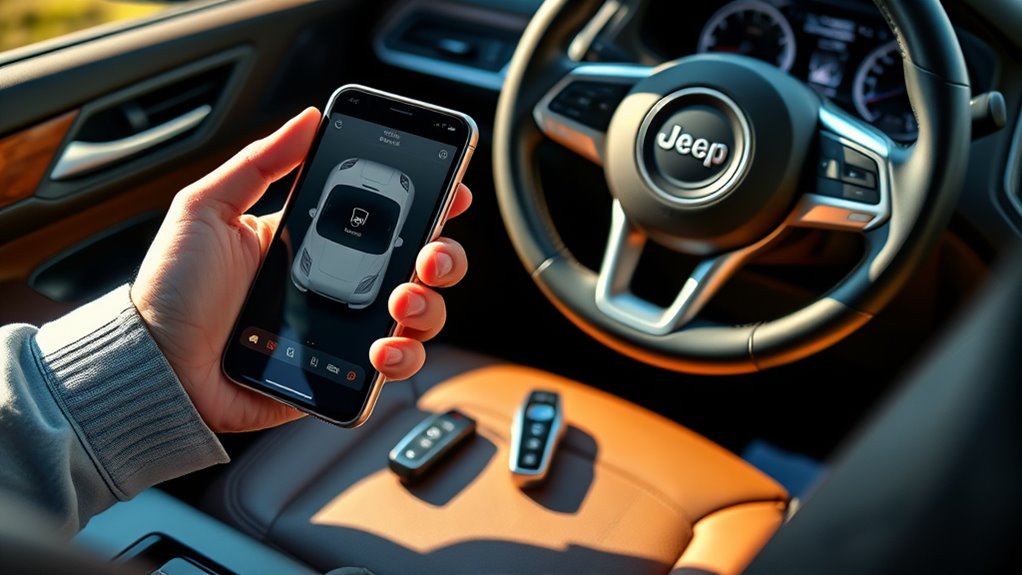
How to Add Your Vehicle to the Jeep App in 10 Easy Steps
To add your vehicle to the Jeep App, first create or log into your account using your email.
Verify your Jeep model supports Uconnect 4 or newer, then locate and enter your 17-digit VIN carefully.
Pair your phone with the vehicle via Bluetooth or Wi-Fi, confirm details, and complete registration with your Jeep in park.
You can add multiple vehicles and customize alerts for each.
If issues arise, troubleshoot with app updates or support.
Keep going for more detailed steps and tips.
Key Takeaways
- Download the Jeep App, sign up or log in using the email linked to your Jeep ownership for easier verification.
- Confirm your Jeep model supports Uconnect 4 or later and locate the 17-character VIN on your vehicle or documents.
- In the app, tap “Add Vehicle,” enable Bluetooth or Wi-Fi, and enter your VIN accurately to auto-populate vehicle details.
- Pair your phone and vehicle via Bluetooth using the four-digit PIN or connect via Wi-Fi, then finalize registration with ignition on.
- Test app functions like remote start, manage multiple vehicles, customize notifications, and update settings for each registered Jeep.
How to Create or Log Into Your Jeep App Account

Wondering how to get started with the Jeep app? First, download and open the Jeep App on your smartphone. To create an account, tap “Sign Up” and enter your email, set a password, and provide your personal details.
Make certain to use the email linked to your Jeep ownership for smoother integration and easier account verification. If you already have an account, simply tap “Log In” and enter your registered email and password.
After signing up or logging in, you’ll need to complete any required verification steps through email or phone to activate your account. This process ensures your account is secure and ready for adding your vehicle.
Check if Your Jeep Is Compatible With the App
Before adding your vehicle to the Jeep App, make sure your Jeep model and year are compatible. Not every Jeep supports the app’s features, so checking compatibility first saves you time and frustration.
Generally, Jeeps equipped with Uconnect 4 or later systems work well with the app. To confirm, verify your model and year against supported vehicles.
Here’s a quick reference for compatible Jeep models:
| Jeep Model | Compatible Model Years |
|---|---|
| Wrangler | 2018 and newer |
| Cherokee | 2017 and newer |
| Grand Cherokee | 2017 and newer |
| Renegade | 2018 and newer |
If your Jeep isn’t listed or uses an older Uconnect system, app features might be limited or unavailable. For certainty, check your vehicle’s owner’s manual or contact your dealership to confirm compatibility before proceeding.
Find Your Jeep’s VIN Number
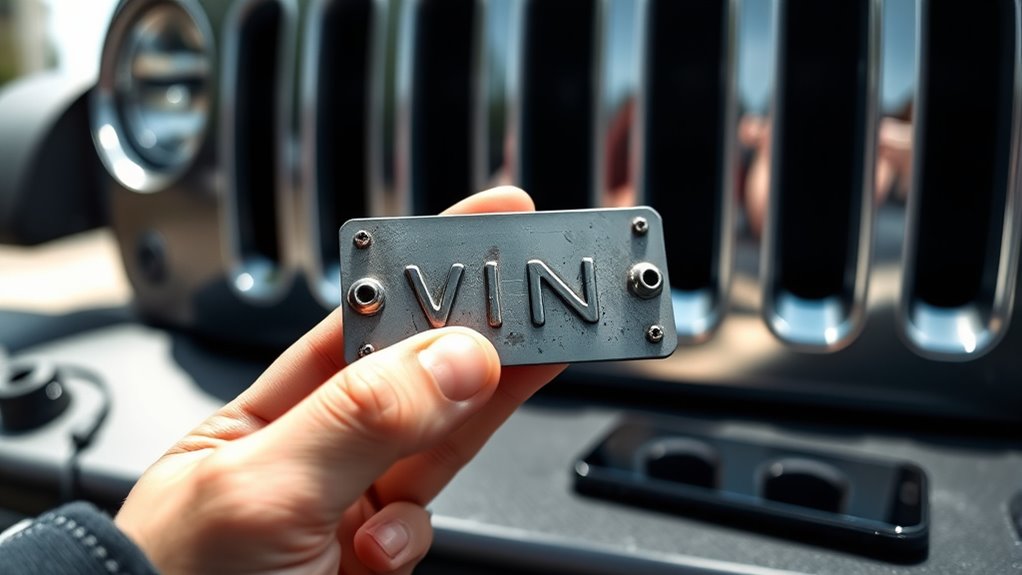
Where can you find your Jeep’s VIN number? Your Jeep’s VIN is a unique 17-character code vital for vehicle identification and registration. To locate it, check these common spots:
- On the driver’s side dashboard near the windshield (visible from outside)
- Inside the driver’s side door jamb label
- On your vehicle’s registration documents
- Printed on your insurance card
- In your Jeep owner’s manual or paperwork
Make sure to write down the VIN carefully, paying close attention to characters that look alike, such as “O” versus zero or “I” versus one. Having the correct VIN is essential for adding your vehicle accurately to the Jeep app and ensuring smooth registration.
Double-check the number before proceeding to avoid any mistakes that could delay the app setup or registration process.
Start Adding Your Vehicle in the Jeep App
Once you have your Jeep’s VIN ready, open the Jeep app and tap “Add Vehicle” to start the registration process. This action initiates the setup, bringing you closer to connecting your Jeep with the app’s features.
Make certain your smartphone’s Bluetooth or Wi-Fi is enabled, as the app will guide you through pairing your vehicle for seamless communication.
Tapping “Add Vehicle” prompts you to enter your 17-character VIN. Input it carefully, paying close attention to characters that can be confused, like the letter “O” and zero. This accuracy ensures the app retrieves the right vehicle details, which you’ll confirm before moving forward.
Enter Your VIN and Confirm Vehicle Details
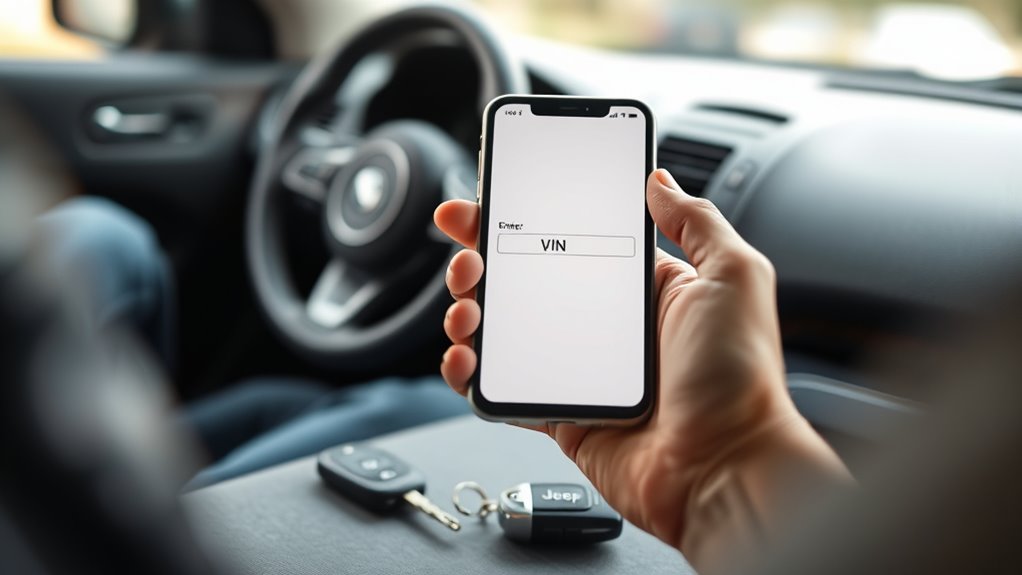
How exactly should you enter your VIN to guarantee a smooth setup? First, carefully input your vehicle’s 17-character VIN into the Jeep app, making sure to distinguish similar characters like the letter “O” from zero. Once entered, the app will auto-populate your vehicle details such as make, model, and year.
Enter your 17-character VIN carefully into the Jeep app, distinguishing similar characters for seamless vehicle detail auto-population.
It’s crucial to review these details closely to confirm they match your vehicle perfectly. If you spot any discrepancies, correct them before moving forward. Finally, confirm both the VIN and vehicle details within the app to complete this step.
Keep these tips in mind when entering your VIN and confirming vehicle details:
- Double-check each character in the 17-digit VIN
- Watch for characters that look alike (O vs. 0)
- Verify the make, model, and year displayed
- Correct any wrong vehicle details immediately
- Confirm the information to finalize registration
Accurate VIN entry ensures your Jeep app functions properly with your vehicle.
Pair Your Jeep With the App via Bluetooth or Wi-Fi
Before you can enjoy full integration between your Jeep and the app, you’ll need to pair your smartphone using Bluetooth or Wi-Fi. For Bluetooth pairing, first make sure Bluetooth is enabled on your phone and that your Jeep is in pairing mode.
Open the app and follow the prompts to search for available devices. When you see “Uconnect” on the list, select it. Enter the four-digit PIN found in your vehicle’s manual when your phone asks for it. Confirm the pairing on both your Jeep’s touchscreen and your smartphone, then wait for the “pairing complete” notification to connect successfully.
If your Jeep supports Wi-Fi pairing, simply connect your phone to the vehicle’s Wi-Fi network. Follow the app’s instructions to establish the connection. This pairing step is essential to connect your devices, ensuring your Jeep and app communicate seamlessly for a better user experience.
Finish Adding Your Jeep to the App
Although you’ve entered your VIN and confirmed your vehicle details, you’ll need to follow the app’s prompts carefully to complete the registration process. To successfully register your vehicle and finish adding your Jeep to the app, make sure you:
Keep your vehicle in park with the ignition on to enable smooth setup. Follow each in-app instruction without skipping steps.
Test basic functions like remote start or checking vehicle status to verify connection. If the process stalls, restart the app or your smartphone and try again.
Allow several hours or overnight for synchronization if you registered via the web portal.
Switch and Manage Multiple Jeeps in the App
You can add multiple Jeeps to the app by entering each vehicle’s unique VIN during registration. Once you’ve added them, just use the vehicle selector to switch between your Jeeps and manage their individual settings. It’s a simple way to keep an eye on and control all your vehicles from one convenient spot.
Adding Multiple Vehicles
Wondering how to manage more than one Jeep in the app? You can easily add multiple vehicles by registering each one with its unique VIN. This lets you handle all your Jeeps from one account without confusion. To add a vehicle, just enter its VIN and link it properly.
Once you add your vehicles, you can:
- View status updates for each vehicle separately
- Customize alerts and notifications per Jeep
- Make sure every vehicle shows as connected
- Control features independently for each Jeep
- Use the vehicle selector to handle your fleet effortlessly
Adding multiple vehicles simplifies your Jeep experience, letting you stay connected and in control no matter how many Jeeps you own.
Switching Between Jeeps
How do you effortlessly switch between multiple Jeeps within the app? First, make sure you add each vehicle separately by entering its unique VIN during registration.
Once all your Jeeps are linked to your account, you can use the vehicle selector feature to toggle between them with ease. This tool lets you manage each Jeep’s customized settings and preferences individually, giving you personalized control over every vehicle.
To keep things running smoothly, regularly update your vehicle list in the app. This ensures you have quick access to all your Jeeps’ information and controls from a single login.
Customize Jeep App Notifications and Alerts
Where do you start when tailoring notifications in the Jeep App? Begin by accessing the notifications or alerts settings within the Uconnect system on the app. This lets you customize your preferences for important vehicle updates and security alerts.
You can enable push notifications or email alerts to stay informed in real time about maintenance needs, security events, or system health.
Focus on adjusting individual notification types so they fit your lifestyle, such as:
- Engine alerts for immediate attention
- Tire pressure warnings to ensure safety
- Remote start confirmations for convenience
- Speed limit notifications to monitor driving
- Geofence boundary alerts for security
Remember to review and update your notification settings regularly. This keeps your Uconnect experience aligned with your needs, ensuring you never miss crucial information about your Jeep’s status and safety.
Troubleshoot Vehicle Addition Issues in the Jeep App
Experiencing trouble when adding your vehicle to the Jeep App? Start by checking the VIN entry. If it’s unresponsive, restart the app or your device before trying again.
Remember, vehicles added through the web portal may take time to sync with the app. Waiting overnight often solves this. Make sure your vehicle is enrolled properly and close to your smartphone, as distance can cause issues.
Also, verify that your app is updated to the latest version. If problems persist, try reinstalling it. If none of these steps work, contact your dealership or Jeep customer support for tailored help.
| Issue | Possible Cause | Solution |
|---|---|---|
| VIN entry unresponsive | App glitch or device lag | Restart app/device |
| Vehicle not syncing | Delay from web portal addition | Wait overnight |
| Vehicle not detected | Vehicle too far from phone | Move closer |
| Persistent issues | Outdated or corrupted app | Update/reinstall app |
| Unresolved problems | Complex technical issue | Contact support/dealership |
Frequently Asked Questions
Can I Add a Trailer or Secondary Vehicle to the Jeep App?
You can’t usually add a trailer or secondary vehicle to the Jeep app because it mainly supports your primary vehicle. Trailer compatibility is limited, and the app doesn’t offer a secondary vehicle setup.
If you want to manage trailers, you’ll likely need a separate trailer-specific app or check if your vehicle supports advanced features through additional packages. Always refer to your user manual or dealership for precise info on trailer or secondary vehicle options.
Does the Jeep App Support Adding Electric or Hybrid Models Differently?
Yes, the Jeep app supports electric vehicle integration and hybrid model support, but you might notice some differences. You’ll need compatible model years and updated Uconnect software for smooth setup.
The app offers tailored features like battery charge monitoring and charging schedule management specifically for electrified Jeeps. Just be aware that certain hybrid or electric models may require activating special settings or firmware updates before you can fully connect them to the app.
How Secure Is My Vehicle Data Within the Jeep App?
You might worry about hackers, but rest assured, your vehicle data is protected with strong data encryption in the Jeep App. While unauthorized access is a real threat elsewhere, here, privacy settings and secure login protocols keep your info safe.
The app uses industry-standard security measures, constantly updated to block vulnerabilities. You control access through authentication steps, so your data stays private and secure, giving you peace of mind every time you use it.
Can Multiple Users Control the Same Jeep Through the App?
Yes, multiple users can control the same Jeep through the app, but it depends on app compatibility and your vehicle’s system. You can share vehicle customization settings and access by inviting others via the app or sharing login details.
Keep in mind, not all Jeep models support multiple profiles simultaneously. You’ll want to check your app’s settings to manage permissions and make sure everyone has the right level of control for a smooth shared experience.
Are There Any Subscription Fees for Using the Jeep App Features?
You won’t face subscription fees for basic Jeep app features like vehicle customization and remote start, as these are free. However, advanced services such as Emergency Assistance and Vehicle Health Reports usually require a subscription.
Keep in mind, app compatibility varies by vehicle model and region, so subscription costs can differ. Always check your Jeep’s specific app compatibility to understand which features need a subscription and which don’t.
Conclusion
Adding your Jeep to the app is simple and rewarding. Did you know that over 70% of Jeep owners actively use the app to monitor their vehicles?
By following these steps, you’ll stay connected, manage multiple Jeeps effortlessly, and customize alerts to fit your lifestyle. If you run into any issues, troubleshooting tips are right there to help.
Get started today and experience the convenience of having your Jeep at your fingertips!