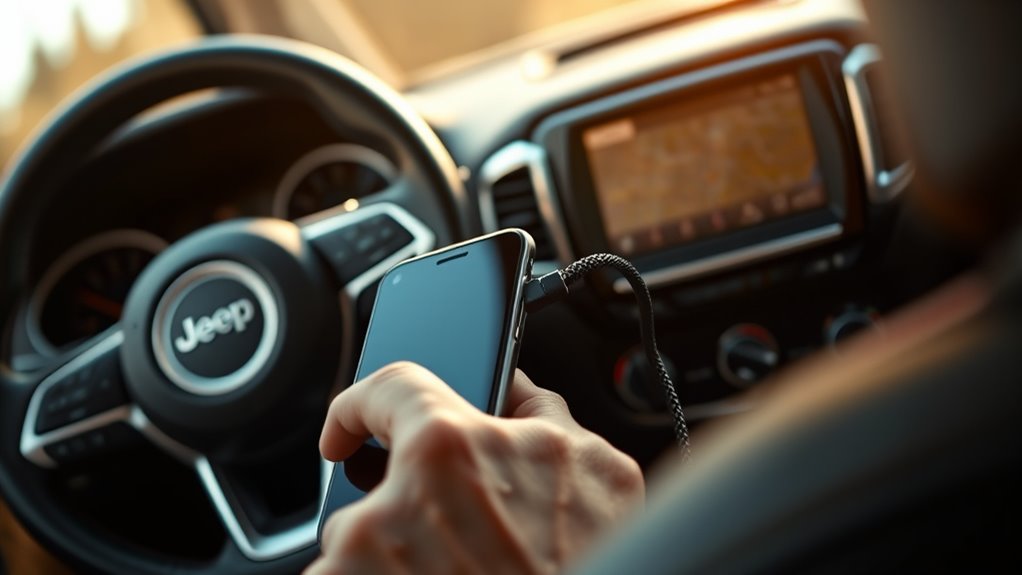
Connect Your Phone to Jeep Uconnect in 7 Easy Steps
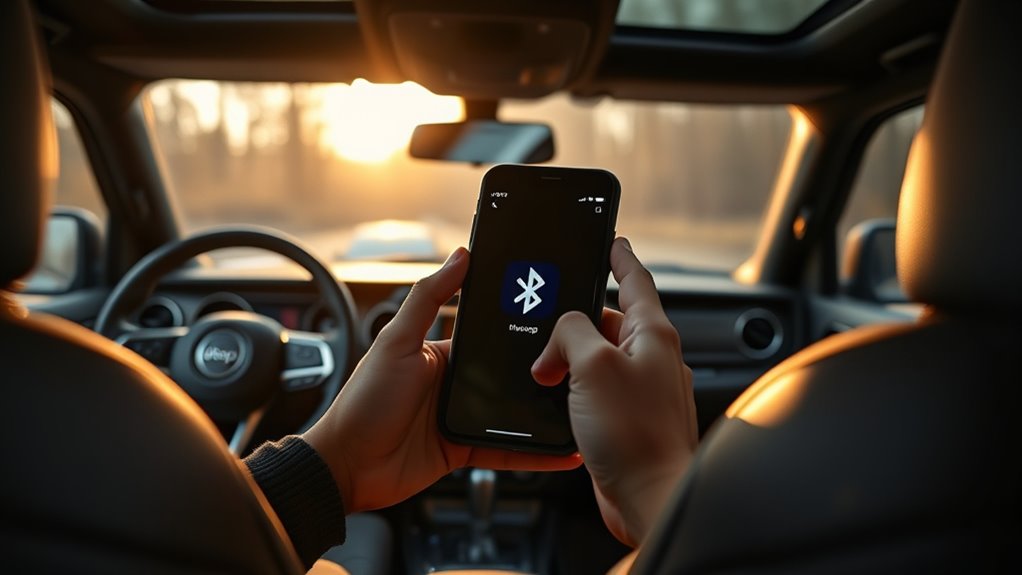
To connect your phone to Jeep Uconnect, first enable Bluetooth on your smartphone and make it discoverable.
Open the Phone menu on your Jeep’s touchscreen, then add a new device in Uconnect settings to start pairing.
Select Uconnect on your phone and confirm the PIN shown on both screens.
Allow access to contacts and messages, then set your phone as a favorite for quick future connections.
Follow these steps, and you’ll also find helpful tips for troubleshooting and optimizing your Bluetooth connection.
Key Takeaways
- Enable Bluetooth on your phone and make it discoverable within a few feet of your Jeep Uconnect system.
- Open the Uconnect Phone menu and select “Add Device” to start the pairing process.
- Confirm the 4-digit PIN displayed on the Uconnect screen matches the one on your phone.
- Allow access to contacts and messages to enable hands-free calling and messaging features.
- Set your phone as a favorite device to ensure automatic future connections with Uconnect.
Enable Bluetooth on Your Smartphone for Uconnect Pairing
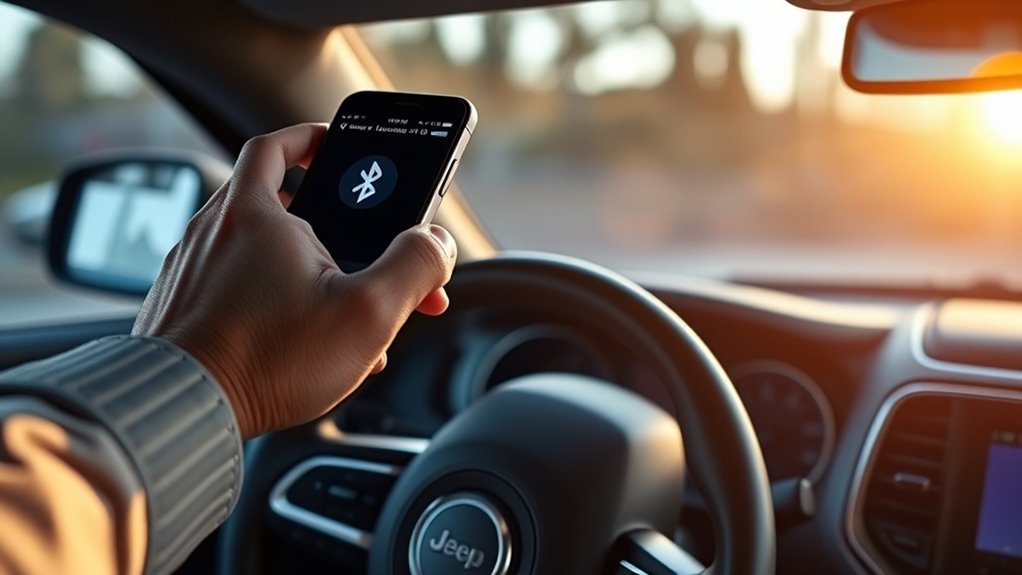
How do you get your smartphone ready to pair with Jeep Uconnect? First, you need to enable Bluetooth on your smartphone. Head to Settings and toggle the Bluetooth switch to ON. This makes your phone discoverable, allowing Uconnect to detect it during the pairing process.
Enable Bluetooth in your phone’s settings to make it discoverable for Jeep Uconnect pairing.
Keep your smartphone close to your Jeep, ideally within a few feet, to ensure a strong Bluetooth connection. Before you start pairing, double-check that no other devices are connected to your phone’s Bluetooth, as this could interfere with the connection.
Also, make sure your phone’s Bluetooth software is up to date to maintain compatibility with Uconnect. By following these steps, you’ll have your smartphone ready and discoverable, making the pairing process quick and smooth.
Activating Bluetooth properly is the crucial first move to connect your smartphone with Uconnect successfully.
Open the Phone Menu on Your Jeep Touchscreen
Before you can pair your smartphone with Jeep Uconnect, you’ll need to open the Phone menu on your touchscreen. This vital step lets you access all Bluetooth features related to your Phone, making pairing quick and easy. On the Uconnect system’s main dashboard display, look for the Phone icon, usually a phone symbol that’s easy to spot.
To open the Phone menu, simply:
- Tap the Phone icon on the Uconnect touchscreen
- View options like “Settings,” “Paired Phones,” or “Add Device” within the menu
- Prepare for pairing by accessing Bluetooth connection settings
Opening the Phone menu is the gateway to managing your Phone’s connection with the Jeep Uconnect system. Once inside, you can begin pairing your device, manage existing connections, or start hands-free calls. This step guarantees your Bluetooth is ready and your Phone is connected seamlessly to the Uconnect touchscreen.
Add a New Device in Uconnect Settings to Start Pairing
To add a new device, first head over to the Uconnect settings on your Jeep touchscreen. From there, find the “Paired Phones” menu and tap on “Add Device” to kick off the pairing process.
Make sure your phone’s Bluetooth is turned on and ready to connect. Once that’s set, your Jeep and phone should start communicating to get everything paired up smoothly.
Access Uconnect Settings
Once you access the Uconnect touchscreen, press the Phone icon and head to the Settings menu to start adding a new device. From here, you’ll dive into the Uconnect Bluetooth settings to prepare for pairing.
To get started, select either “Paired Phones” or “Bluetooth Devices” and then tap “Add Device.” This puts the system into pairing mode, ready to connect with your smartphone.
Before proceeding, make sure to:
- Enable Bluetooth on your phone and make it discoverable
- Follow the prompts on the touchscreen to select your device
- Be ready to enter the PIN code displayed on your Uconnect screen
Accessing these settings correctly sets the foundation for a smooth pairing experience with your Jeep’s Uconnect system.
Initiate Device Pairing
After accessing the Uconnect Bluetooth settings and selecting “Add Device,” you’ll activate pairing mode on your Jeep’s system. On the touchscreen, press the Phone icon and confirm “Yes” when asked to begin pairing.
Next, make sure Bluetooth is enabled and your smartphone is set to discoverable. Then, select “Uconnect” from the list of available devices on your phone. A 4-digit PIN will appear on the Uconnect screen; enter this PIN on your smartphone to confirm the connection.
Once pairing is successful, you’ll be prompted to set your device as a favorite. Doing this prioritizes your smartphone’s connection for hands-free calls and media streaming, ensuring a seamless experience every time you get behind the wheel.
Select Uconnect on Your Phone and Confirm the PIN Code
Next, go ahead and select Uconnect from the list of Bluetooth devices on your phone. You’ll see a 4-digit PIN pop up on your Jeep’s screen—take a moment to check that it matches the one showing on your phone before you confirm. If the codes don’t match, no worries! Just restart the process, and a new PIN will be generated.
Choose Uconnect Device
How do you connect your phone to the Jeep Uconnect system? First, you’ll want to choose the Uconnect device from your smartphone’s Bluetooth menu to start the pairing process. Selecting the correct device ensures a smooth connection between your phone and the Uconnect system.
To successfully pair and connect your smartphone, follow these steps:
Open your phone’s Bluetooth settings and select “Uconnect” from the available devices list. When prompted, tap “Pair” or “Yes” on your phone to initiate the connection. Make sure your phone is set to auto-connect or trusted device mode to maintain seamless future connections.
Verify Matching PIN
While pairing your phone with the Jeep Uconnect system, you’ll see a 4-digit PIN displayed on the Uconnect screen. To verify the connection, select the Uconnect device from your phone’s Bluetooth list.
When prompted, enter the same PIN code shown on the Uconnect screen. Both your phone and the Uconnect system may ask you to confirm or approve the passkey. Make sure the PIN matches exactly on both devices.
This step is vital for pairing because it guarantees a secure Bluetooth connection between your phone and Uconnect. Once you verify the matching PIN code, the devices will pair successfully, enabling features like hands-free calling and messaging.
Always double-check the PIN during pairing to avoid connection errors.
Allow Access to Contacts and Messages on Your Phone
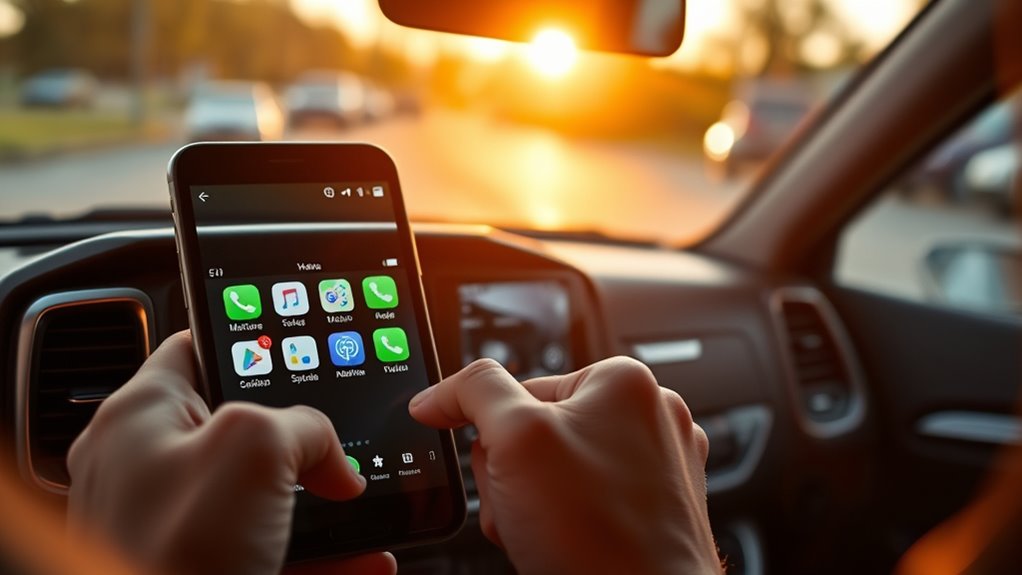
Although pairing your phone with Jeep Uconnect is straightforward, you’ll need to grant access to your contacts and messages to enable full hands-free features. When you see prompts during the pairing process, make sure to allow access to contacts and messages.
This lets Uconnect sync your phonebook and text messages, so you can use voice commands to call or text without touching your phone.
Here’s what to keep in mind:
- Allow access to contacts for seamless calling directly through Uconnect.
- Grant message permissions to read and send texts safely from the infotainment screen.
- If your phone doesn’t prompt automatically, check your settings to manually enable permissions for Uconnect.
Set Your Phone as Favorite to Prioritize Connection
Once you’ve paired your phone with Uconnect, setting it as a favorite guarantees it connects automatically every time you enter your Jeep. During the Bluetooth pairing process, you’ll be prompted to designate your device as a favorite, making future connections quicker and hassle-free.
By prioritizing your phone as a favorite, Uconnect guarantees it connects first, allowing seamless hands-free calling without needing to manually select your device each time. While Uconnect can store multiple favorite devices, assigning your primary phone as the top favorite helps maintain a reliable connection.
This prioritization not only streamlines your in-car experience but also improves Bluetooth stability, reducing the chances of connection dropouts while driving. Setting your phone as a favorite in Uconnect is a simple yet effective way to enhance your Bluetooth connection, keeping you connected and focused on the road ahead.
Troubleshooting and Tips for Better Bluetooth Connections
If you’re having trouble connecting your phone to Jeep Uconnect, start by ensuring Bluetooth is enabled and your device is nearby. Sometimes, simple troubleshooting steps can solve common issues and improve your connection quality.
First, delete any old pairing profiles on both your phone and Uconnect system. This clears conflicts from outdated connections. Next, restart both your phone and the Uconnect system to fix temporary glitches affecting Bluetooth performance.
Also, confirm your phone supports essential Bluetooth profiles like Hands-Free Profile (HFP) and Message Access Profile (MAP) for full functionality.
To troubleshoot effectively, try these tips:
- Delete existing profiles using the “Forget” option on both devices before re-pairing.
- Keep your phone close to the Uconnect system during pairing.
- Restart devices regularly to maintain stable Bluetooth connections.
Following these steps will help you enjoy seamless pairing and reliable Bluetooth connectivity in your Jeep.
Frequently Asked Questions
Can I Connect Multiple Phones to One Uconnect System Simultaneously?
Yes, you can pair multiple phones with your Uconnect system, but only one connects actively at a time. Phone pairing depends on device compatibility and staying within Bluetooth range to maintain connection stability.
You’ll use the user interface to switch between devices easily. Just watch for connectivity issues, like dropped signals, which can happen if you’re out of range or if too many devices are competing. Managing connections helps keep things smooth.
Does Uconnect Support Bluetooth Audio Streaming Besides Calls?
Don’t judge a book by its cover. Yes, Uconnect supports Bluetooth audio streaming beyond calls. When you complete Bluetooth pairing, you’ll enjoy great audio quality through your Jeep’s speakers.
Keep in mind, device compatibility varies, so check your phone’s support first. If you face connection issues, clearing device memory might help. Plus, you’ll get handy streaming controls right on your dashboard, making it easy to manage your music on the go.
How Do I Update the Uconnect Software for Better Compatibility?
To update your Uconnect software for compatibility improvements, download the latest software update from the official Mopar website. Transfer the update file to a USB drive, then insert it into your Jeep’s Uconnect port.
Follow the on-screen update process carefully, keeping your vehicle powered on and stationary. After completion, check the firmware version in settings to confirm success. Regular updates help avoid issues.
If problems arise, use the troubleshooting steps in the manual.
Can I Use Voice Commands to Control Phone Functions Through Uconnect?
Imagine your voice as a conductor leading an orchestra. Each command triggers perfect harmony. Yes, you can use voice commands through Uconnect for hands-free dialing, speech control, and audio control.
Its advanced voice recognition lets you manage calls and music seamlessly, acting as reliable driver assistance. Just press the voice button and speak naturally. You’ll stay focused on the road while your phone obeys your every command effortlessly.
Is There a Limit to the Number of Contacts Synced With Uconnect?
Yes, there are contact limits with Uconnect due to sync restrictions and device pairing capabilities. Typically, you’ll find a phone count cap around 1,000 contacts, but this data cap can vary by model and region.
These connection boundaries help prevent slowdowns and incomplete contact lists. To stay within these limits, regularly review and delete unnecessary contacts, ensuring smooth performance and efficient syncing with your Uconnect system.
Conclusion
Connecting your phone to Jeep Uconnect is simple and satisfying. By swiftly setting up Bluetooth, selecting your device, and syncing with the system, you secure seamless communication.
Remember to routinely refresh your connection and resolve any roadblocks with patience. Prioritize your phone for perfect pairing and prioritize safety on every journey.
With these steps, you’ll enjoy effortless entertainment, easy access, and enhanced experiences every time you hit the highway. Stay smart, stay synced!